How to open a skin inspection
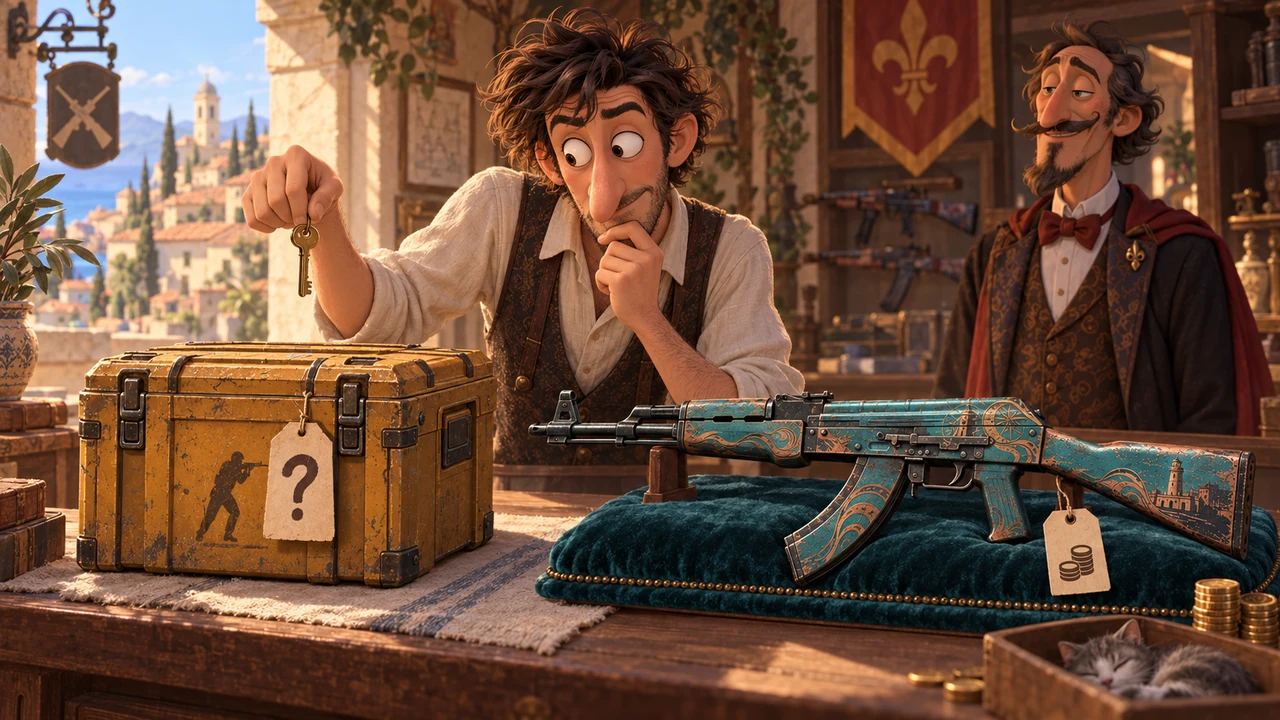
Start from the listing for the individual item. A general skin page shows the finish design, but does not confirm the wear, pattern or stickers on the item you have chosen.
- Open the listing. Check the weapon, skin name, condition and any StatTrak or Souvenir designation.
- Find Inspect in Game. Look among the actions in the listing and the item menu. If it is unavailable, check for a 3D viewer or photos of this item. A generic skin image is not a substitute.
- Open the item through Steam. If your browser asks to launch Steam, allow it. CS2 must be installed for an in-game inspection. If the item does not open, see the troubleshooting section below.
- Check that it is the right skin. Compare the name and visible details with the listing: stickers, their placement and distinctive parts of the pattern. If they differ, check which listing you opened the inspection from.
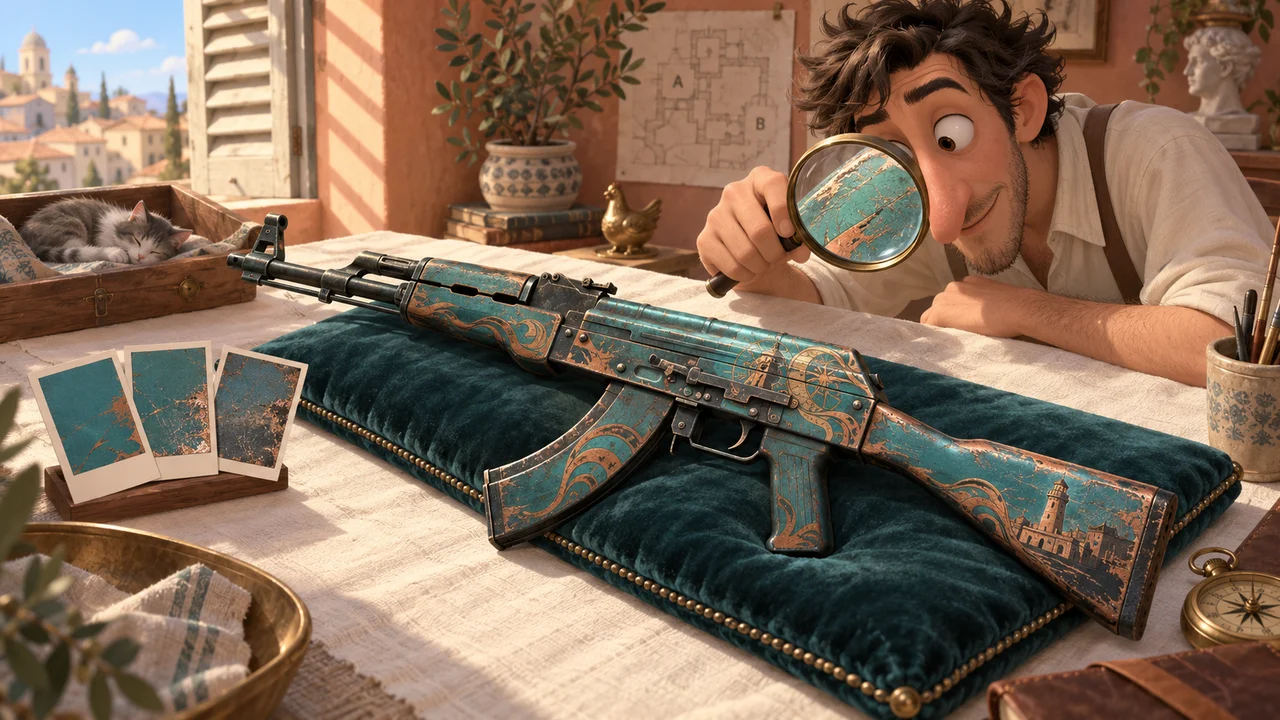
- Look at both sides. Pay attention to scratches and wear on the body and edges, pattern placement and the areas beneath stickers.
You do not need to buy a skin to preview it if the listing offers a working inspection. The button label depends on the interface language.
What to check: float, wear, pattern and stickers
Compare the listing details with the item you opened. Look up numbers in the item information and assess its appearance on the model or in photos.
- Condition / Exterior
- Check the wear category in the name and listing, such as Minimal Wear or Field-Tested. Items in the same category can look different, so compare visible wear.
- Float / Wear Rating
- This is the finish's numerical wear value. Look for Float or Wear Rating in the listing or item information. Do not estimate float from a picture. Compare visible wear and the pattern as well.
- Pattern / Paint Seed
- This number identifies a pattern variation. On some finishes, it affects where colours and design elements appear.
- Look for Pattern or Paint Seed in the item information, and judge the actual pattern on the model.
- Stickers and charm
- Compare the accessories listed with those on the model. Check sticker placement, visible scraping and the parts of the finish they cover. Check for a charm if the listing includes one.
How to compare two skins
View both from the same angle and compare the same area: scratches, pattern placement and stickers. Then compare the float values if available.
How to view a skin without opening it in-game
If launching CS2 is inconvenient, check whether the listing offers another way to view the item:
- A browser-based 3D viewer lets you rotate it. Colours and shine may differ from the game.
- Photos of the individual skin help you examine details. Look for views of both sides.
Make sure the viewer or photos show the item you chose: a generic finish image does not show its individual wear or accessories. Even in CS2, inspection lighting can differ from lighting on a map.
What to do if Inspect in Game will not open
- The browser does not launch Steam. Check for a prompt to open the app. Make sure Steam is running and CS2 is installed, then try the action in the listing again.
- Steam opens, but the item does not appear. Launch CS2 manually, then select Inspect in Game again in the original listing.
- Only one listing fails. Refresh it and check whether the item is still available. Try inspecting another listing to see whether the problem is specific to that item.
- Inspection is still unavailable. Use a 3D viewer or photos of the item if provided. If you cannot check important details, contact the marketplace's support team.
Before receiving a skin, read what to check in a trade offer and where to find your Steam Trade URL.