DatDrop guides: find an answer and your next step
Choose a task, check your situation and get a clear action plan.
No matches. Try a shorter query.
All guides
Inside DatDrop
The platform, key terms and differences between modes.
Read the guideHow to deposit on DatDrop
Payment methods, fees, the DatPoints bonus and help with missing deposits.
Read the guideSkins and Steam trades
Trade statuses, Trade URL and protection after receipt.
Read the guideBattles: rounds and results
Two rounds, cumulative totals and why the winner wins.
Read the guideUnderstanding Provably Fair
Hashes, round inputs and three verification outcomes.
Read the guideSecurity starts with you
Fake sites and trades, account protection and recovery.
Read the guideWhat do you need help with?
Jump to a topic or browse all the questions below.
Sign-in and account
Steam Guard code not arriving
Look for the code in email or the app, depending on your Steam Guard method.
- Identify your Steam Guard method: email or mobile authenticator. With the mobile method, you do not need to wait for an email.
- For email, check the correct inbox and spam; for the app, use the current Steam Guard code. Older codes do not work.
- If you no longer have access to the email or phone, use official account recovery. Do not disable protection at a stranger’s request.
Use the latest code. Never forward it to another person.
Explanatory illustration: the method depends on your Steam Guard settings.
Lost access to the account or phone
Use official Steam Support to recover access.
- Open the official Steam recovery page below and select your situation: forgotten password, lost authenticator or stolen account.
- Follow Steam’s instructions for your case. Do not send passwords, codes or documents to people offering recovery in private messages.
Steam works but site sign-in does not finish
If Steam sign-in works, check where the website sign-in stops.
- First check whether you can sign in to Steam itself. If not, use official account recovery.
- If Steam works and an error appears only on another site, save its exact text. This is not necessarily a Steam Guard issue; ask that site’s support for clarification.
- Check the sign-in page address. Do not disable account protection or approve a sign-in you did not initiate.
Payment problems
Payment declined: what should support know?
First establish whether the payment was declined, reserved or charged.
- Keep the exact rejection message, time and transaction ID, if available.
- Check your banking app for a charge versus a declined attempt. Do not repeat the payment while the first transaction is unclear.
- If no reason is shown, send the error to the payment provider or bank support. They do not need passwords or confirmation codes.
Money charged but balance not updated
Check whether the charge is complete: a reserved amount does not mean payment succeeded.
- Compare the banking status with the platform transaction: a completed charge and a temporary hold are different states.
- Keep the receipt, amount, currency, time zone and transaction ID. Do not send another payment as a test.
- Ask official support to investigate. A charge alone does not establish the reason for a delay or a refund deadline.
Banks and services use different status labels. These explanations do not determine your transaction’s status.
Which transaction details should I keep?
Keep the transaction ID, amount, time and exact error message.
- Record the date and time with time zone, amount, currency and transaction ID.
- Include the exact error and a status screenshot. Hide card numbers, banking details and unnecessary personal data.
- Explain what you expected and what you checked. Never include passwords, Steam Guard codes or bank SMS codes.
Withdrawals and items
Steam shows a trading restriction
The Steam notice states the reason and duration of the restriction.
- Read the exact Steam notice: which action is unavailable, why, and whether an end date is shown.
- An account restriction, a trade hold and Trade Protected on an item already received are different situations. Do not assume they share the same duration.
- Compare the notice with the Steam help article below. If the reason remains unclear, contact Steam Support with the message text.
What does Trade Protected mean?
Trade Protected temporarily protects an item already received; it is not a delivery delay.
- Look for the yellow shield and Trade Protected label in your Steam inventory. Do not confuse this with an account-wide restriction.
- Check the item description for its expiry. Protection lasts 7 days after a confirmed trade; delivery itself is immediate.
- During protection you can use the item in-game, but cannot transfer, modify or consume it. Refer to Steam for the exact expiry.
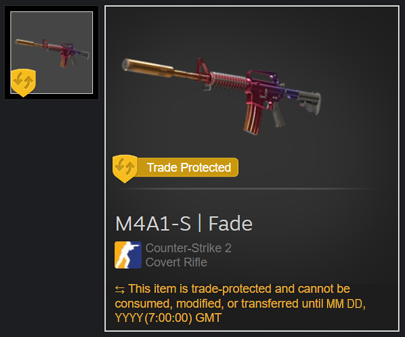
Official Steam help example. The yellow shield and label mark item protection.
- Trade confirmed
The item arrives immediately and can be used in-game.
- Next 7 days
The item cannot be transferred, modified or consumed, including moving it to storage.
- After 7 days
Trade Protected expires. Check other account restrictions separately.
This protects an item already received; it is not a delivery queue.
No trade offer: how do I describe the issue?
Compare the platform transaction status with incoming offers in Steam.
- Check the platform transaction history and incoming offers in Steam itself.
- Record the status, time and transaction ID. Do not confirm an offer that differs from what you expected.
- If no offer exists, describe the discrepancy to official support. Delivery timing depends on the transaction; a missing offer alone does not explain the cause.
These are three situations to check, not DatDrop status labels.
Rules and results
How do the modes differ?
- An ordinary case opening shows one case result. Battles compare participants, while tournaments add successive stages.
- In RPS, the rock–paper–scissors pairing determines the result. Other modes use their own rules.
- The mode overview has explanations and demonstrations. Check the specific variant: a shared category name does not imply identical rules.
How is the winner determined?
- This depends on the mode and variant. Some compare cumulative totals; others use a particular round or stage.
- Compare the result with the rule for that variant, rather than simply picking the largest number on screen.
- The games overview includes worked examples. For a disputed result, keep the game ID and a screenshot for support.
What does Provably Fair verify?
- Provably Fair lets you check a result against verification data and an algorithm, when the platform supplies them.
- It checks a particular result; it neither predicts the next result nor guarantees a win.
Bonus terms
Is bonus balance the same as main balance?
No. Bonus and main balances can have different restrictions. An awarded amount is not necessarily available for withdrawal.
Is wagering volume the deposit amount?
No. It is the total of qualifying wagers, not the size of a single deposit. Meeting the requirement can involve losing money.
Does a bonus guarantee a win?
No. A bonus does not guarantee a win or remove the risk of losing money.
Security
How do I spot a fake site or trade?
- Check the full website address, not just its logo and appearance. Open Steam independently if a message link looks suspicious.
- Before confirming a trade, check the recipient and full item list. Do not confirm a trade whose contents have changed.
- Never share passwords, codes or tokens. The security guide explains warning signs and account recovery.
An unexpected confirmation arrived
Do not approve an unknown sign-in or trade. Open Steam independently, review account security and use official recovery if you have lost control. Never share passwords or codes.
What should I do if my account may be compromised?
- Do not approve unfamiliar sign-ins or trades, and stop talking to suspicious support impersonators.
- Open official Steam recovery yourself and follow its account-security instructions. Use account recovery if you have lost access.
- Keep messages and details of suspicious activity. Do not pay intermediaries promising to recover your account or items.