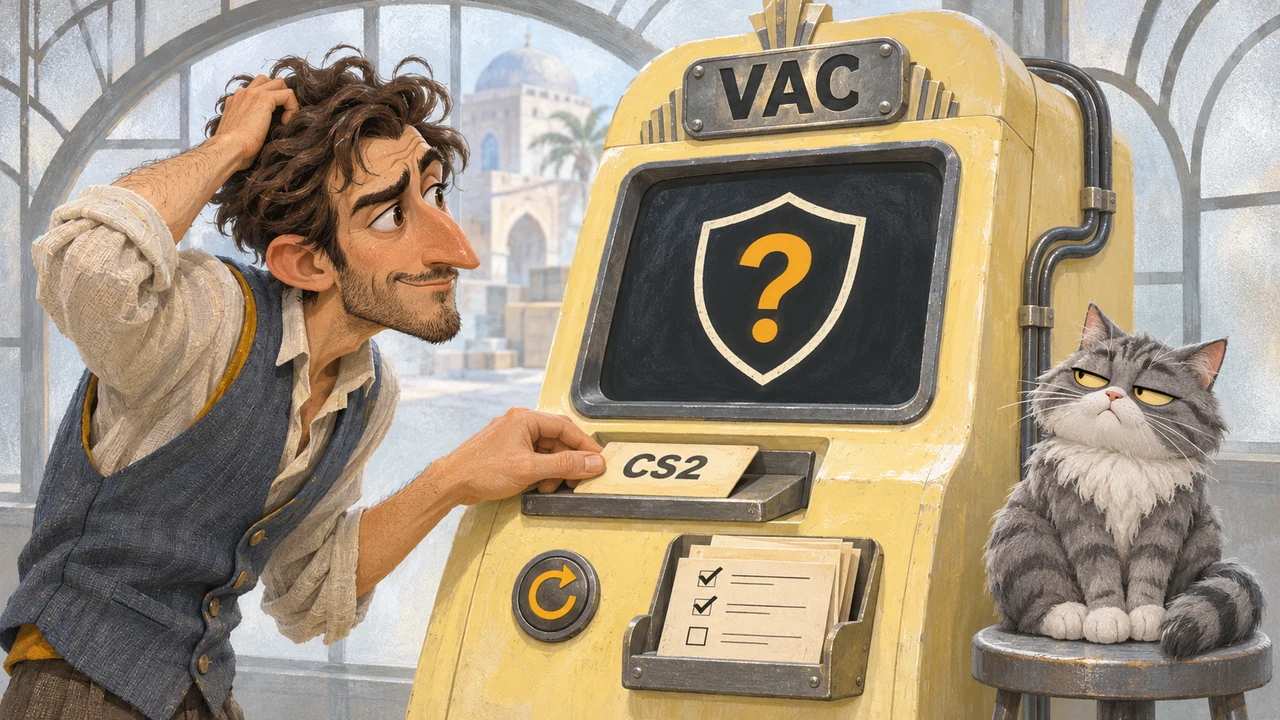
VAC error: choose your starting point
| Your situation | Next action |
|---|---|
| First occurrence | Fully exit Steam, restart the computer and let updates finish |
| Error persists after restarting | Verify CS2’s game files |
| Verification finished but the error returns | Remove changes made by third-party tools and check software conflicts; then repair Steam Service on Windows |
| A different error or a timed restriction appears | Record its exact wording; see the connection and restrictions section below |
How to check whether the VAC error is gone
After each change, launch Steam and repeat the action that triggered the message, such as matchmaking or connecting to a server. Launching CS2 or opening a local practice session does not establish that a secure-server connection now works.
Where possible, test outside a competitive match. Change one factor at a time and note the result. If the original action works without the error, stop escalating for now. A successful test does not guarantee that the fault will never return.
Fully restart Steam and your computer
Close CS2 and choose Exit in Steam’s client menu. Closing the window may leave Steam running in the background. Restart the computer, open Steam and wait for client and game updates to finish. Repeat the failed action. If the message remains, verify the files.
Verify CS2’s game files
- Close CS2 and open your Steam Library.
- Right-click Counter-Strike 2 and select Properties.
- Open Installed Files → Verify integrity of game files.
- Wait for verification and any downloads to finish, then repeat the action that failed.
Avoid antivirus scans or other disk-heavy work during verification. Check one game at a time.
Some local configuration files may fail verification and are not meant to be replaced by this process. The number of unverified files alone does not identify the cause of a VAC error. If verification gets stuck, use our CS2 file verification guide.
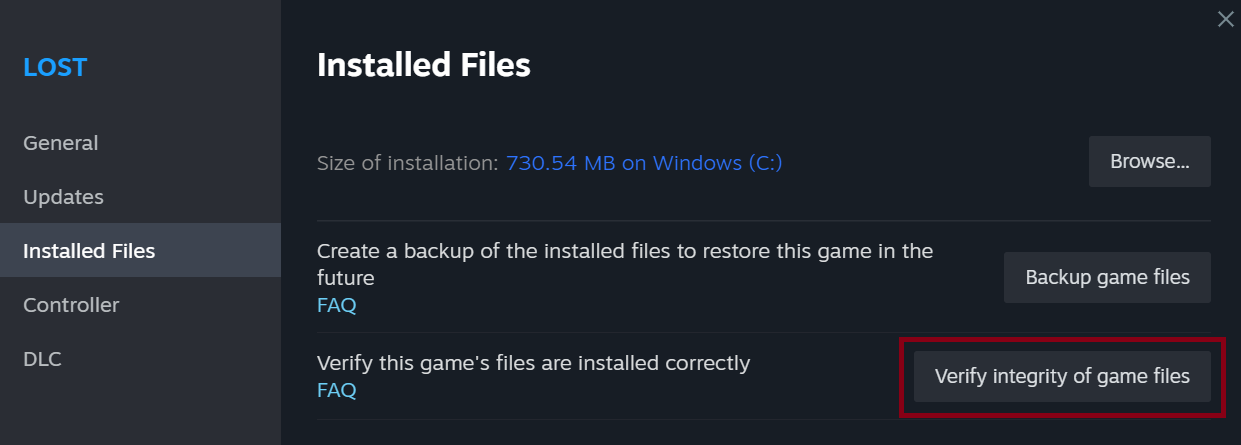
Illustration from Steam documentation, in English. It shows another game, not CS2, to help locate the file verification button.
File verification did not help: check modifications and background apps
Recall what changed before the error: a newly installed utility, modified game files, a skin changer or custom textures. Valve specifically identifies file and texture modifications as possible causes of VAC disconnections.
If you used such a tool, stop using it, remove its changes, restart the computer and verify the game files again. Do not re-enable a skin changer as a test.
For other optional background apps:
- Save your work and use the app’s normal Exit command. Start with a recently installed or updated app that runs alongside the game.
- Restart Steam and repeat the failed action.
- Record any change in behavior and the app’s name. Reintroduce only ordinary apps that do not modify the game, one at a time.
A changed result narrows the investigation; one coincidence does not prove the cause. A conflict with Trusted Mode, which restricts third-party interaction with CS2, does not by itself make an app a cheat.
Do not delete all your settings. Back up any .cfg file before changing it; see the CS2 config and autoexec guide. If the error persists on Windows, continue below.
Repair Steam Service on Windows
Steam Service and CS2’s files are separate components. Verifying the game does not repair the service. This command is Windows-only; do not run it on Linux.
Find the actual SteamService.exe path
Locate the client’s steam.exe. If you use a file shortcut to the Steam client, inspect its Properties and Target path. Use the client shortcut, not an Internet shortcut to CS2. Open the client’s folder, then its bin folder, and find SteamService.exe.
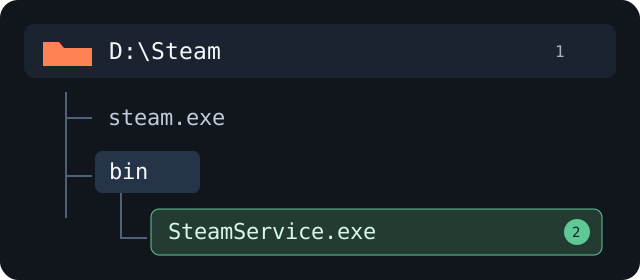
Reference diagram, not a screenshot. Your installation folder may differ.
Run the command in an administrator Command Prompt
Fully exit Steam. Search Windows for cmd, open the result’s context menu and choose Run as administrator. Approve the system prompt if you have the required permissions.
For the default installation folder:
"C:\Program Files (x86)\Steam\bin\SteamService.exe" /repairFor an example installation in D:\Steam:
"D:\Steam\bin\SteamService.exe" /repair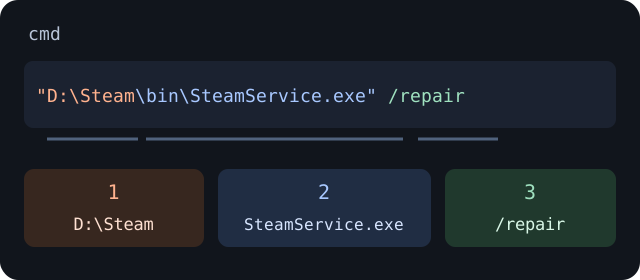
Syntax diagram: 1 is your Steam folder; 2 is the service executable; 3 is the repair argument. Quotes surround the entire file path.
These examples are for cmd. In Windows Terminal, check that the active shell is Command Prompt rather than PowerShell; other shells may require different syntax. Wait for the operation, which may take a few minutes, then launch Steam and repeat the failed action.
If the command fails or the VAC error persists
| Result | What to check or do |
|---|---|
| File or path not found | Compare the command with the folder actually containing SteamService.exe. Do not download a replacement executable from another site |
| Insufficient permissions or elevation required | Check that cmd was started as administrator. Ask the computer’s administrator if you lack those rights |
| Syntax error or unrecognized command | Check that you are using cmd, straight quotes and a space before /repair; compare with the example |
| Command finished but the same VAC message returns | Save the command output and connection-test result for support. Completion alone does not prove the issue is fixed |
If Steam loses its connection or reports a restriction
For “No Steam logon” or “Secure connection failed,” record whether Steam itself stays connected: do its pages load, do downloads continue, and are there disconnect notices? Note whether this affects only CS2 or the client too. A working store page does not establish that every game connection works.
File verification does not test the network. Do not disable Windows protection or Secure Boot as an experiment. System-file repair and restoring altered boot settings are separate procedures; discuss unknown system changes with support.
For a competitive cooldown, read the reason and duration in CS2. Fixing the connection does not remove an existing restriction. If Steam separately reports a VAC ban, reinstalling or verifying files will not remove it. Steam Support cannot manually lift VAC bans; an incorrectly issued ban is removed automatically.
What to send Steam Support
If these checks do not help, open Support in the Steam client and describe the reproducible problem. Copy and complete this template:
Error: [exact wording; screenshot attached]
System: [Windows/Linux and version]
When and where: [date, time, time zone; action/mode]
Recurrence: [every time or intermittent; affected servers]
Checks done: [restart, file verification, software checks]
Windows Steam Service: [command and output, or why skipped]
Result of each step: [what changed and what did not]
Recent changes and Steam connection: [observations]
Do not include your password or Steam Guard codes. Crop screenshots to the error and relevant diagnostic information. Specific before-and-after observations are more useful than “I tried everything.”
Checked against Steam documentation on 10 November 2026. The diagnostic order is editorial guidance; commands were not run on a gaming computer. These steps do not guarantee a fix.